Copyright © 2005 Neuberger & Hughes GmbH
Contact information:
Neuberger & Hughes GmbH
Im Bruckenwasen 1
Plochingen
73207
Germany
phone: +49 (7153) 6120-0
fax: +49 (7153) 6120-33
mail: info@n-h.net
N&H helpdesk system:
web: http://support.n-h.com
mail: support@n-h.com
Internet:
http://www.n-h.com
http://exchange4linux.com
Table of Contents
- Preface
- 1. e4l connector 2.4.x and 2.5.x
- 1.1. Configuration possibilities
- 1.2. Options A and B - e4l with Outlook 97/98/2000/XP/2003: mail through E4L
- 1.3. Option C - e4l with Outlook XP/2003: mail through POP3/IMAP
- 1.4. Option D - e4l with Outlook 97/98/2000: mail through POP3
- 1.5. Settings for meeting invitations (free/busy times)
- 1.6. Functions within Microsoft Outlook
- 1.7. Delegate accounts
- 1.8. Tips and remarks
Thank you for choosing a Neuberger & Hughes’ exchange4linux product. We have made all possible efforts to make this guide as clear as possible for both the inexperienced user and the professional system administrators. In case you still have questions, please consult the on-line N&H Support System at http://support.n-h.com. To use this and other support tools, you need to have a valid support contract. For more information on the support possibilities, please contact Neuberger & Hughes.
A + B:
exchange4linux user + mail through exchange4linux (full E4L-account)A + C:
exchange4linux user + mail through POP3/IMAP (combination account)
Full E4L-account:
When you use full E4L-accounts (A+B), all the workgroup data of these users will
be saved in the central E4L-database. Setting up a full E4L-account within Outlook
is very simple: only one service needs to be added to the profile. The folder
structure within Outlook is clear and consists of one set of personal exchange4linux
folders and one set of public exchange4linux folders. For configuration
possibilities see the table below.
Combination account:
By using combination accounts (A + C), the mail objects of these users is being
kept outside of the exchange4linux database. This way your database remains small,
fast and this makes your server suitable for a significantly larger amount of users.
When you use exchange4linux in combination with IMAP, all data still remains
centrally on the server! Within Outlook this requires some additional configuration
work, since multiple services need to be added to the profile. The consequence of
this approach is that there will appear two sets of e-mail folders within Outlook:
one exchange4linux tree and one IMAP tree. Incoming messages will appear in the IMAP
inbox. Outgoing e-mail, drafts, etc. will be saved in the exchange4linux folders.
For more info, see the configuration possibilities in the table below.
![[Caution]](gfx/caution.png) | Caution: |
|---|---|
| Outlook 97, 98 and 2000 can only be combined with POP3 e-mail in Workgroup-mode.
This is a limitation of Outlook which is resolved in Outlook XP, where workgroup
items and IMAP mail can be used simultaneously. | |
To make a mailbox for distribution purposes, there are the same possibilities. Here you also need to point out whether it concerns a regular POP3/IMAP/Webmail mailbox and/or an exchange4linux mailbox.
Outlook XP(2002)/2003 | Outlook 97/98/2000 | |
|---|---|---|
Full exchange4linux account:
|  |  |
exchange4linux in combination with POP3/IMAP:
|  |  |
Before you start:
Before you start you need to be sure that there is an active, correctly installed
exchange4linux server in your network. Furthermore you need to have a username and
the corresponding password at hand.
The most recent Outlook Connector can be downloaded from the website: http://www.exchange4linux.com
When an older version of the Outlook Connector is installed on the workstation, please notify yourself of the version that is being used at this moment. Sometimes the active version needs to be de-installed completely before starting the installation process of the new Connector. To do this, read the instructions in this manual or on the exchange4linux website. When in doubt, consult your exchange4linux Service Center.
To make Microsoft Outlook 97, 98 and 2000 suitable for exchange4linux, there are several settings that need to be made on the workstation. To begin with, Outlook must be configured for usage in the Workgroup mode. You can confirm this through the menu item Help - About Microsoft Outlook. When the term Workgroup is not visible here, but instead Internet Mail, Outlook needs to be re-configured. To do this, go to Tools - Options - Tab Mail delivery and click Reconfigure Mail Support. Now choose the option Workgroup.
- Outlook XP or Outlook 97/98/2000 in workgroup mode
- Default transport service: exchange4linux through MAPI
- The standard Outlook Connector is being used
Close Outlook. Make sure that the processes outlook.exe and mapisp32.exe do not run anymore by opening the Windows Task Manager. If necessary, close them manually.
Install the Outlook Connector (exchange4linux-setup-xxx.exe)
Make a new profile at Control panel - Mail (Outlook 2003: E-mail) which you name eg. exchange4linux. If you want to, you can let Outlook ask which profile to use when starting the program (Section 1.8).
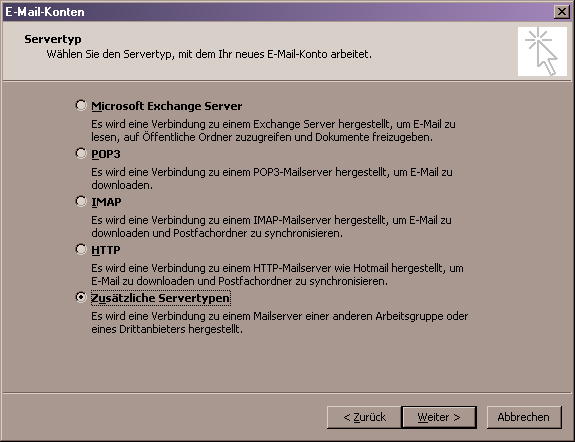
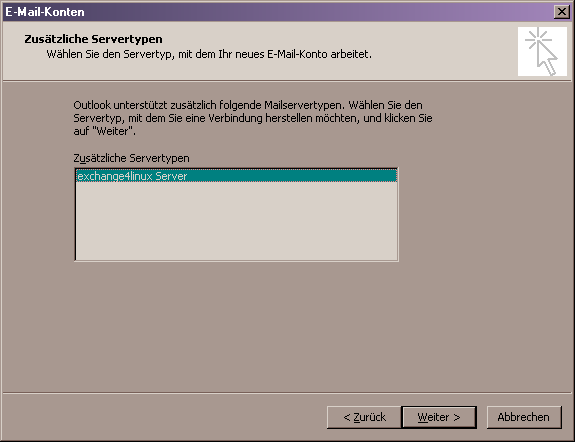
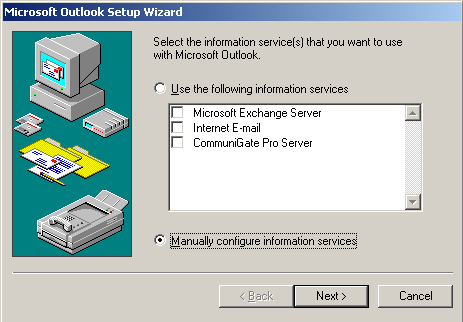
First, add a new e-mail account to this profile. Choose the category additional server types (Figure 1.2 and Figure 1.3). In Outlook 2000 choose Manually configure information services, Figure 1.4.
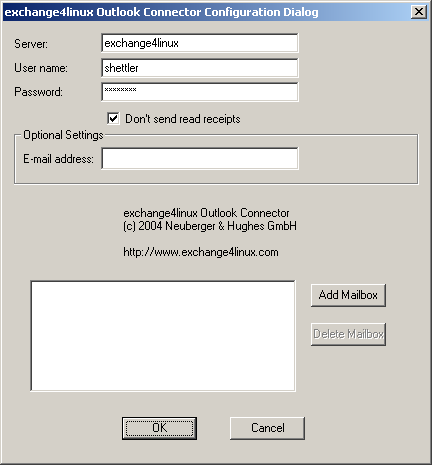
Fill in the IP-address of the exchange4linux server, together with the mailbox name and the corresponding password (Figure 1.5). Check Don’t send read receipts to make sure that no read confirmation will ever be returned. The e-mail address is composed in the following way: <mailbox name>@domainname.com. With Outlook Connector 2.5.8 and higher it is possible to set up another sender’s address that accompanies every message. See Optional settings: E-mail address. At Add mailbox one can add one or more delegate accounts if applicable. This functionality will be explained in more detail in Section 1.7.
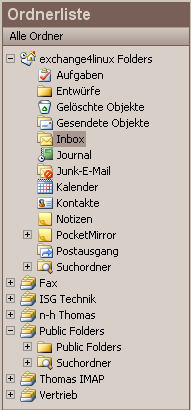
Start Outlook, the folder list will look somewhat similar to Figure 1.6.
Go to Tools - Address book and choose Tools - Options. The settings here need to correspond to those visible in Figure 1.1.
It could be that after a first installation you get warning messages with regard to the information archive or the demo mode. Please ignore such a message and restart Outlook.
Control whether Outlook functions properly.
Specifications:
|
- Outlook XP
- Default transport service: depends on the order of installing accounts
- Available services: (combinations of) E4L, POP3 and IMAP accounts
- The standard Outlook Connector is being used
Close Outlook. Make sure that the processes outlook.exe and mapisp32.exe do not run anymore by opening the Windows Task Manager. If necessary, close them manually.
Install the Outlook Connector (exchange4linux-setup-xxx.exe)
Make a new profile at Control panel - Mail (Outlook 2003: E-mail) which you name eg. exchange4linux. If you want to, you can let Outlook ask which profile to use when starting the program (see Section 1.8).
Caution:
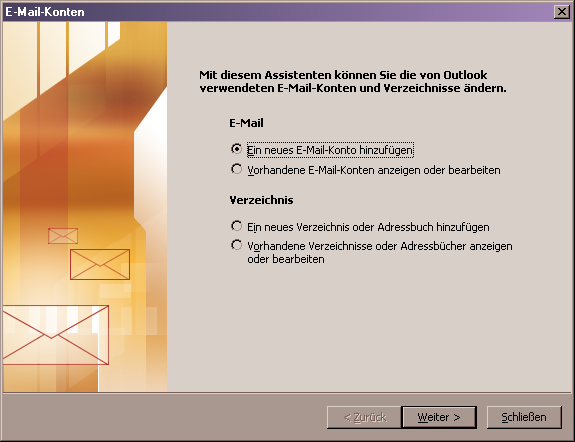
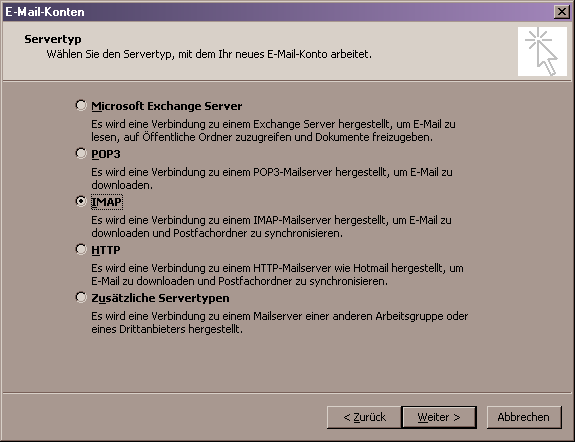
The order in which the different accounts are being configured decides Default transport service. When you configure a POP3/IMAP account first, then this will be the Default transport service and mail will accordingly be sent through the standard SMTP service of Outlook. When an exchange4linux account is configured first, mail will be sent using the MAPI service of the Outlook Connector.Add a new e-mail account to this profile (POP3 or IMAP), the Default transport service will thus be the standard SMTP service of Outlook (Figure 1.7 and Figure 1.8).
Fill in the necessary account data (Figure 1.9).
Start Outlook, the folder tree will look somewhat similar to Figure 1.10.
It could be that after a first installation you get warning messages with regard to the information archive or the demo mode. Please ignore such a message and restart Outlook.
At this point additional e-mail accounts can be added. When you choose a POP3/IMAP account at step 5, you will normally select an exchange4linux account now and vice versa (see Section 1.2 on how to add an exchange4linux account to an Outlook profile).
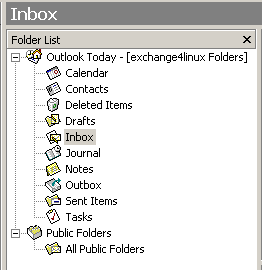
Control whether Outlook functions properly. After adding an exchange4linux account the folder tree will look somewhat similar to Figure 1.11.
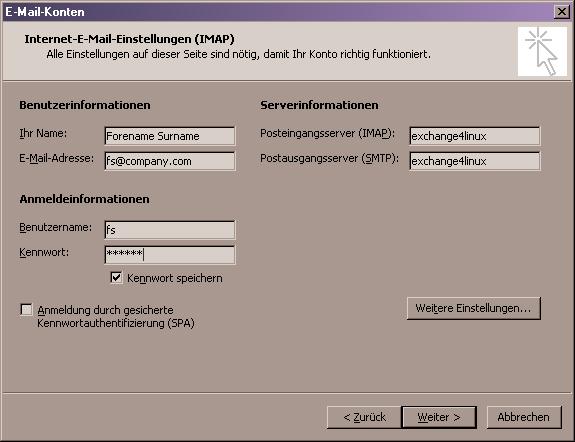
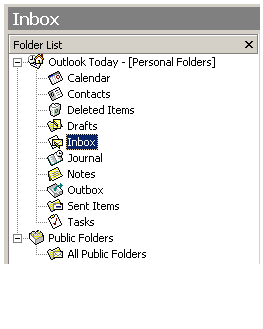
Specifications:
|
- Outlook 97/98/2000
- Default transport service: depends on the order of installing accounts
- Available services: (combinations of) E4L and POP3 accounts
- The standard Outlook Connector is being used when exchange4linux is set up as
the Default transport service.
- When the POP3 account functions as Default transport service, use the
modified Outlook Connector
(exchange4linux-setup-pop3pst-xxx.exe, see for more info http://www.exchange4linux.com).
| Caution: |
|---|---|
| The order in which the accounts are being configured decides the Default
transport service. When a POP3 account
has been configured first, this will be the Default transport service and mail is
being sent through the standard Outlook SMTP service. In this case the special,
modified Outlook Connector (exchange4linux-setup-pop3pst-xxx.exe) must be used.
Please follow the installation procedures described below: | |
Close Outlook. Make sure that the processes outlook.exe and mapisp32.exe do not run anymore by opening the Windows Task Manager. If necessary, close them manually.
Install the correct Outlook Connector, depending on the Default transport service (exchange4linux-setup-pop3pst-xxx.exe in case of POP3).
Make a new profile at Control panel - Mail (Outlook 2003: E-mail) which you name eg. exchange4linux. If you want to, you can let Outlook ask which profile to use when starting the program (Section 1.8).
Add a POP3 account (Internet e-mail) to this profile first, so that it will use the Outlook SMTP service as Default transport service (Figure 1.4).
Fill in the necessary account data.
Start Outlook, the folder tree should resemble Figure 1.10.
It could be that after a first installation you get warning messages with regard to the information archive or the demo mode. Please ignore such a message and restart Outlook.
Now the exchange4linux account can be added as is described in Section 1.2.
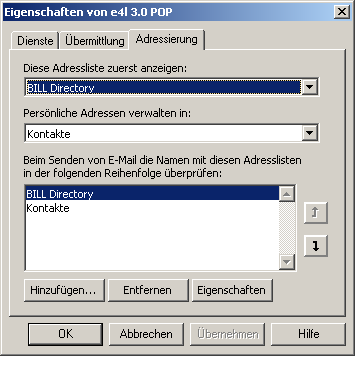
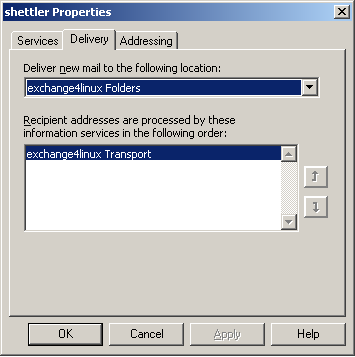
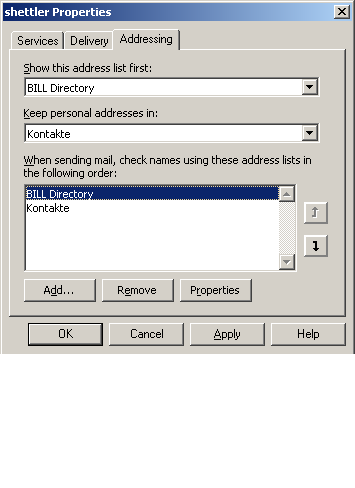
Go to Control panel - post and then to the tab Delivery. Make sure that the first item, Deliver new e-mail to, has got the personal folders selected. Furthermore at the tab Addressing the following settings need to be made (Figure 1.12 and Figure 1.13):
Show this address list first:
Bill DirectoryKeep personal addresses in:
Contacts
Control whether Outlook functions properly.
When you choose to make an exchange4linux account first, the mail will be transferred using the MAPI services of the installed normal connector. In this situation you first follow the installation procedure as described in Section 1.2, followed by setting up the POP3 account. |
Specifications:
|
Install the web publishing wizard on the desired workstations. The program can be downloaded from the following location:
http://www.microsoft.com/downloads/release.asp?ReleaseID=22658&area=search&ordinal=2
Adjust these settings in Outlook: At Options - Calendar options - Free/busy options (Outlook 2003: Availability information):
Publish at this URL: ftp://exchange4linux/freebusy/%NAME%.vfb
Search at this URL: http://exchange4linux/freebusy/%NAME%.vfb
Confirm this alteration by clicking OK for several times. Then go to Send & receive - Free/busy information (Outlook 2003: Availability information).
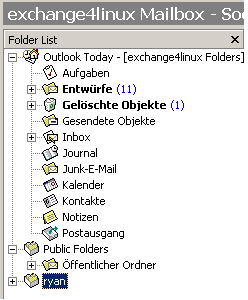
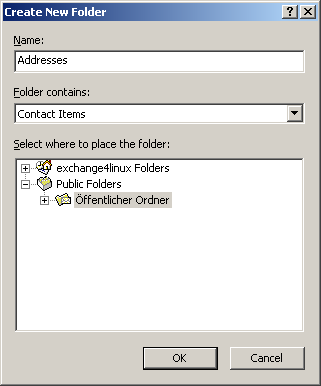
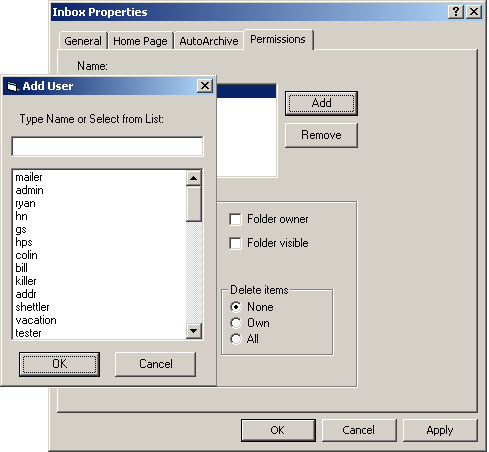
Personal exchange4linux folders are managed centrally on the server, but are only accessible for the specific user. These folders can contain among other things e-mail messages, calendar items, contacts, etc. Since this information is stored centrally, the items can be accessed from every workstation on which this specific exchange4linux profile is activated. It is possible to make new folders yourself (Figure 1.15) and, in case of a public folder, to make it visible/editable for all or certain workgroup users. In other words: one can allow certain users to e.g. be able to delete or edit items in this folder (Figure 1.16). The default settings hold for all users except for those that are mentioned specifically.
Because of security reasons, only the user admin is allowed to make new subfolders within the public folder tree. When it is desired that other users are permitted to do this as well, please follow this procedure:
Open Outlook as user admin.
Right-click the main folder Public Folders and click Properties.
Go to the tab Permissions and add the users that are allowed to make new folders (or select Default when all users should be allowed to do this).
Make sure that the applicable users have got all permissions checked here (except for Folder owner).
| Caution: |
|---|---|
| No one but the user that has created a folder is allowed to remove it! | |
-
Create items the user is allowed to add new items to the folder.
-
Read items all the items within the folder are visible to the user.
-
Create subfolders the user can create a subfolder within this
specific folder.
-
Folder owner the user is able to change the permissions for
other users.
-
Folder visible the folder itself is visible to the user.
-
Edit items in case of none the user is not
allowed to edit items, in case of own the user may edit his own
items and in case of all the user is allowed to change all
items within the folder.
-
Delete items in case of none the user is not
allowed to delete items, in case of own the user may delete his
own items and in case of all the user is allowed to delete
all items within the folder.
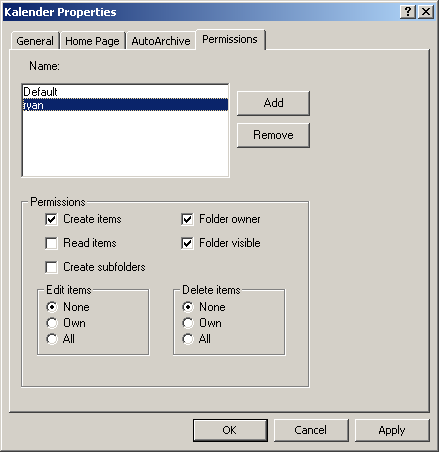
Appoint permissions to users that you want to allow access to certain personal folders, eg. calendar and inbox. Do this by right-clicking the folder in question, selecting Properties and then by going to the tab Permissions. The settings are similar to those available for a public folder, described in the previous paragraph. On Figure 1.17 the user bogaard gets permission to read items in a certain folder of this user.
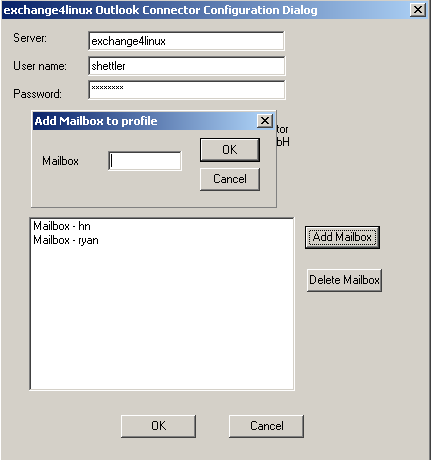
User bogaard can now decide to make this folder visible in his Outlook profile. This is done by browsing to account properties (go to Extra - E-mail accounts - Display or edit existing e-mail accounts - exchange4linux Server - edit). Here the mailbox name can be inserted of the user whose personal folders are to be displayed, eg. ryan (see Figure 1.18).
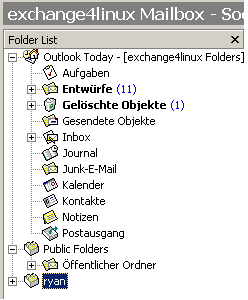
From now on the folders that have been selected for this purpose will be visible, and with the proper permissions it is also possible to add/remove items (Figure 1.19).
| Caution: |
|---|---|
| due to the additional load on the exchange4linux server that is caused by using
delegate accounts, it is advised not to set up over five delegates per user. | |
In case you suffer sudden problems with the functioning of Microsoft Outlook, please shutdown the program and restart it. Always make sure that the processes outlook.exe and mapisp32.exe do not run anymore after shutting down the application. Do this by opening the Windows Task Manager (press Ctrl – Alt – Esc simultaneously). If necessary, close them manually here.
When using delegate accounts there will be an additional folder in the tree with the mailbox name of the user that has granted you access rights.
When multiple persons use the same workstation, there needs to be a separate Outlook- (or even better a Windows-) profile for every user. Please make sure that the correct mailbox name and password are filled in for all of them.
It can occur that some mails include an attachment called winmail.dat. This has got nothing to do with exchange4linux. A thorough explanation for this phenomenon is given by Microsoft on the following URL: http://support.microsoft.com/?kbid=241538
Items for which one want to set up a reminder need to be made in the corresponding folder of the Default transport service.
Outlook will always check free/busy times based on the corresponding folder of the Default transport service.
When exchange4linux is being used as the Default transport service, the functionality read receipts is not supported.
When exchange4linux is being used as the Default transport service, it is not possible to send e-mail messages directly from other Microsoft applications (like Word, Excel, etc.)
Outlook 97 and 98 do not offer the functionality to grant permissions for (public) folders.
Outlook 97 and 98 do not offer the possibility to use free/busy times information.
At this point in time, sending HTML-mail is only supported when exchange4linux is not set up as the Default transport service.
Sometimes it can occur that after installing a new Connector, a new profile must be made. Settings of a previous profile can easily be copied though. This way one does not need to configure the new profile after it has been added.